Escenio / Connection guide / grandMA3
From your phone to the console, with feedback. A visual guide to OSC networking and the Escenio Lua plugin.
Android · iPhone · iPad · Updated .
These five screenshots show a specific setup: grandMA3 at 192.168.3.26 and the phone at 192.168.3.27. These are example addresses; use the addresses of your own network. The screenshots retain their original interface language. The instructions and captions below are in English. Select any screenshot to open it at full size.
01 / Network
Two devices. Two directions.
Connect the phone or tablet and the console—or the computer running grandMA3 onPC—to a local network where they can communicate. The console or computer can use Ethernet while the phone uses Wi-Fi. Control does not require Internet access; downloading the plugin from this website does.
| Direction | Destination | Protocol / port |
|---|---|---|
| Escenio → grandMA3 | Console: 192.168.3.26 | UDP 8010 |
| grandMA3 → Escenio | Phone: 192.168.3.27 | UDP 8004 |
Match the ports across devices. Escenio’s send port must match grandMA3’s input port. grandMA3’s output port must match Escenio’s listening port. This guide uses 8010 / 8004, as shown in the screenshots. If your version’s help suggests 8000 / 8001, you can use that pair provided you change both ends accordingly.
Allow local network access when your operating system requests it. Check the phone’s current IP; it may change after reconnection. If several interfaces are available, choose the one that reaches the console. Avoid guest networks that isolate clients.
02 / grandMA3
Set up OSC input and feedback.
- Open Menu → In & Out → OSC.
- Under Interface, select the interface connected to this network. The screenshot shows
en0 (192.168.3.26); your interface may have a different name. - Enable Enable Input and Enable Output. Also check OSC Input and OSC Output in Station Control.
- Create one line for input and another for feedback. Leave Prefix empty on both.
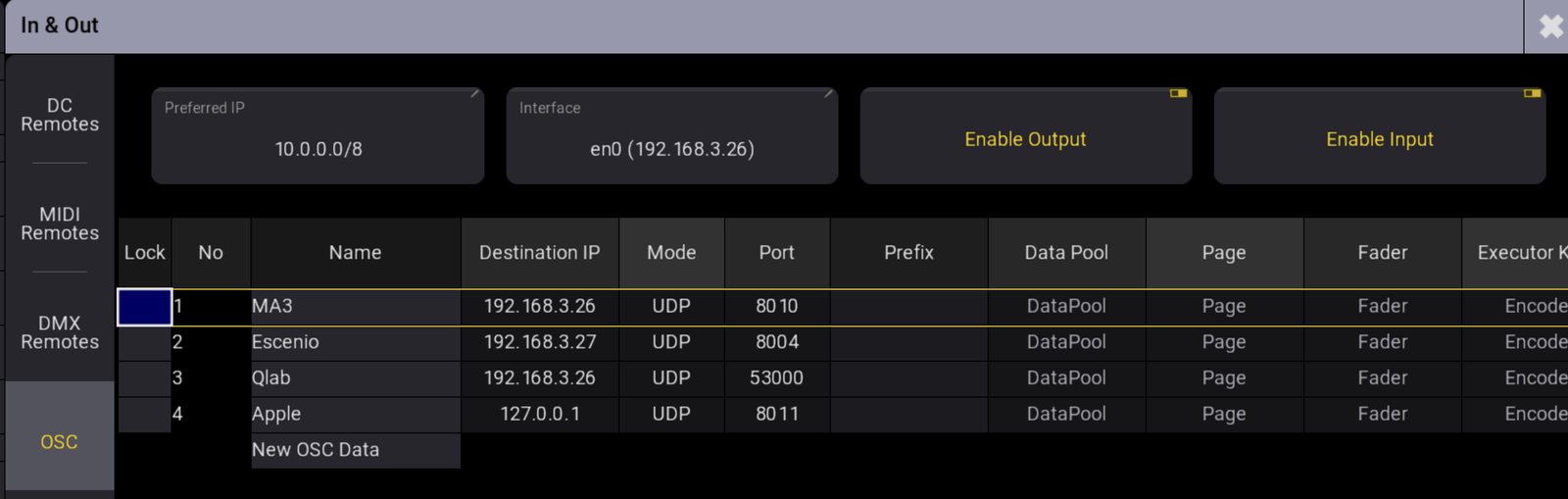
| Setting | Input line: MA3 | Feedback line: Escenio |
|---|---|---|
| Mode / Port | UDP / 8010 | UDP / 8004 |
| Destination IP | The screenshot shows 192.168.3.26; this column determines the destination when sending. | 192.168.3.27 — phone IP |
| Receive | Yes | No |
| Receive Command | Yes | No |
| Send | No | Yes |
| Send Command | No | Yes |
| Prefix | Empty | Empty |
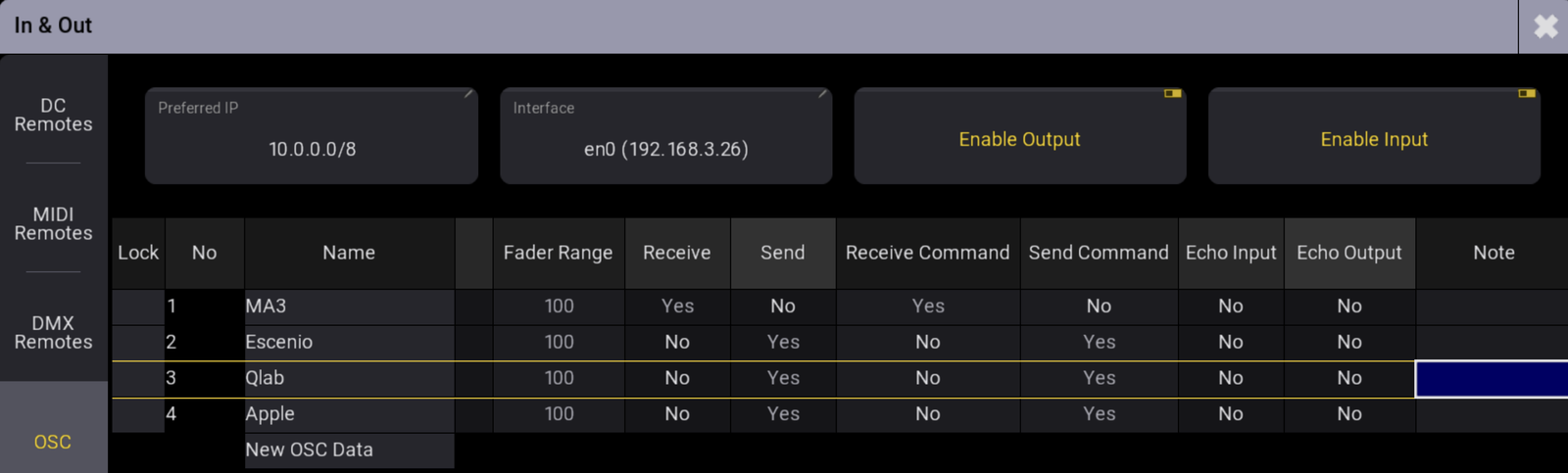
Receive enables OSC data input; Receive Command enables command-line instructions. These settings are independent. The input line can have a descriptive name; the plugin uses the name Escenio to locate its feedback output.
You do not need the Qlab or Apple rows for this connection. Do not copy the screenshot’s Preferred IP as a required address; check the effective network interface of your setup.
03 / Phone or tablet
Save the matching connection in Escenio.
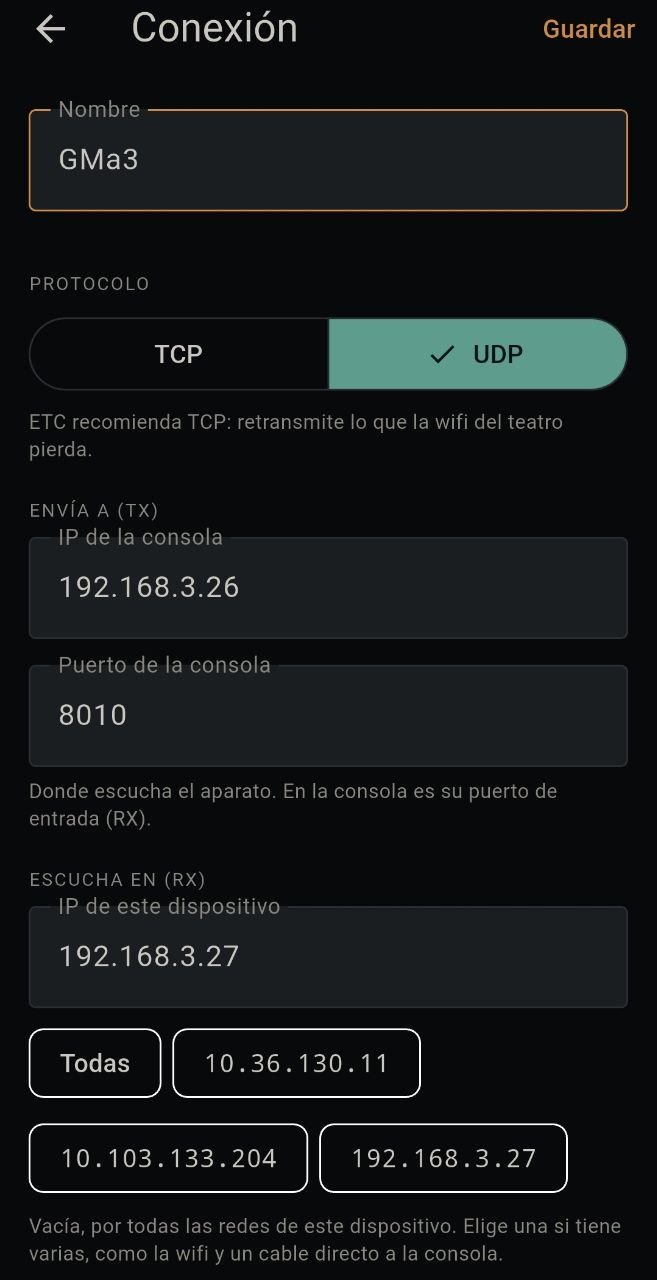
Destination and protocol
- Create or edit a connection using the grandMA3 profile.
- Give it a recognizable name; the screenshot uses GMa3.
- Select UDP.
- In IP de la consola (Console IP), enter
192.168.3.26. - In Puerto de la consola (Console port), enter
8010. - In IP de este dispositivo (This device’s IP), select
192.168.3.27or your phone’s actual address on this network.
The “ETC recommends TCP” help visible in this screenshot refers to ETC. Use UDP to reproduce this grandMA3 setup.
Local listening port
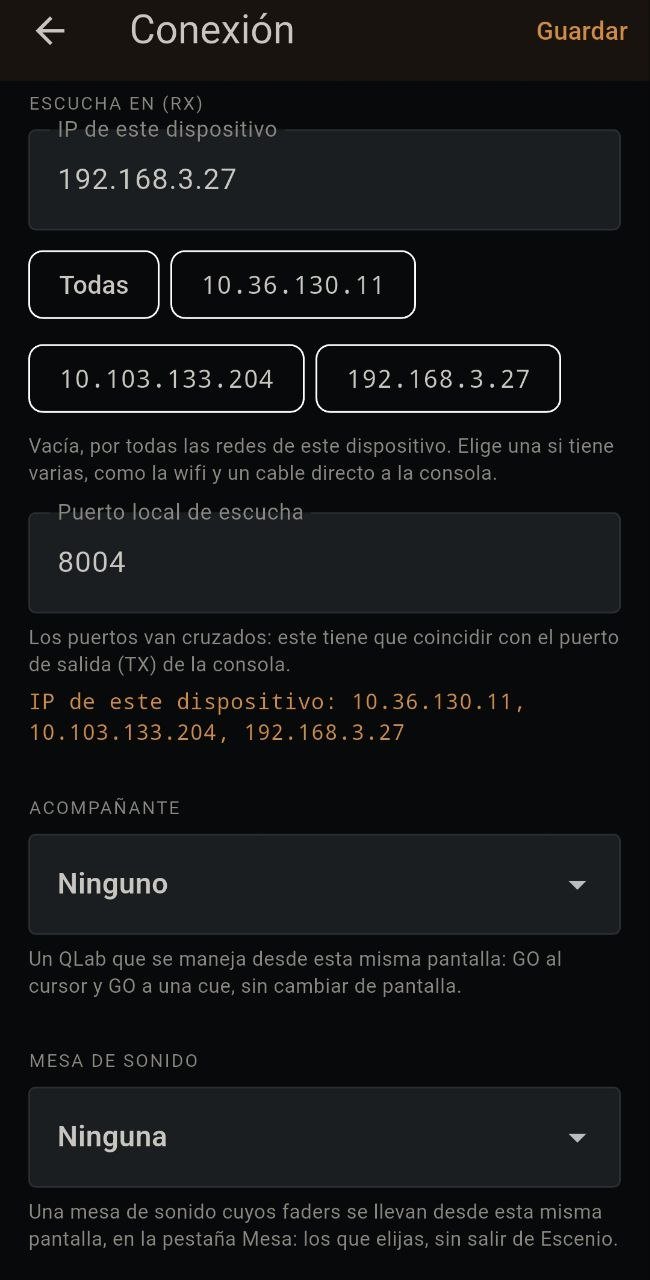
Enter 8004 in Puerto local de escucha (Local listening port). It must match the port of the Escenio line in grandMA3.
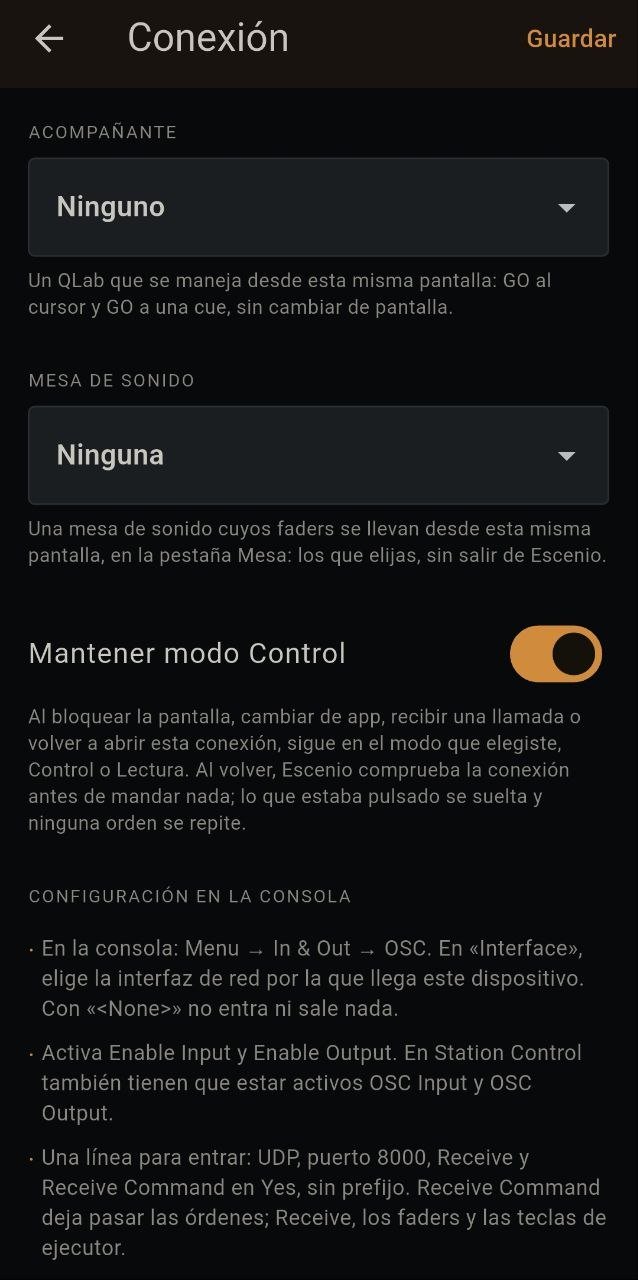
For this example, leave Acompañante: Ninguno (Companion: None) and Mesa de sonido: Ninguna (Sound desk: None). These are additional integrations and are not needed to connect grandMA3.
If you bind to a specific phone interface, choose the one on this network. Selecting “Todas” (All) does not configure the console’s destination IP for you.
Control mode and saving
Mantener modo Control (Keep Control mode) retains your chosen mode when you return to the app. The text on this screen states that Escenio checks the connection and does not repeat previous commands.
You can turn it off if you prefer to review the mode on return. Always check the destination and current state before operating.
Tap Guardar (Save) and open the connection. Start by checking reading and feedback; switch to Control when ready to send commands and when the corresponding control access is available.
The help at the bottom of this screenshot mentions 8000. This guide uses 8010: the saved value in Escenio and grandMA3’s OSC input port must match.
04 / Lua plugin
Install the Escenio plugin.
The plugin is optional and free. It adds status queries, confirmations and a shared command line to supported Escenio functions. grandMA3 control can be used without the plugin; see the Escenio product page for your version’s features.
Option A. Install from the app
If your version offers Install the plugin, configure OSC first, connect to the console, enable Control and follow Escenio’s confirmation. Then check the detected version and save the show. The public product page describes this method for Escenio 1.3.3; these five screenshots do not show the installation process.
Option B. Export files from the app
If the plugin sheet offers file sharing, export escenio.xml and escenio.lua to a computer or USB drive and follow the manual import steps below. Local export does not require downloading the website package.
Option C. Download and import manually
Download Escenio plugin 1.4.1 for grandMA3 · ZIP
Package linked by Escenio’s public product page, containing XML, Lua and instructions. Its documentation reports testing with grandMA3 onPC 2.3.2 and 2.5.1; this does not establish validation on every version or on a physical console.
- Back up your show and extract the ZIP.
- Place
escenio.xmlandescenio.luatogether ingma3_library/datapools/plugins/on the drive you will use. On a USB drive, this path starts at its root. - In grandMA3, open the Plugins pool, select an unused slot and open its editor. Tap Import, select the correct drive and
escenio.xml, then import it. - Alternatively, with the correct source drive selected, use the following command. 98 is an example: check that the slot is unused.
Import Plugin Library "escenio.xml" At Plugin 98For onPC on macOS, Escenio documents the user library at ~/MALightingTechnology/gma3_library/datapools/plugins/. On other systems, select your installation’s user library; do not import from the internal example library.
Check that the plugin is named exactly Escenio and that its Lua component is not red. Save the show, return to Escenio and use Search again if available. Avoid overwriting other plugins or keeping ambiguous duplicate copies.
05 / Check
Verify both directions before operating.
- Check the connected device and the show that is open.
- Confirm that Escenio receives updated state and detects the plugin if installed.
- During rehearsal, with the system prepared, send a deliberate action and check its result in grandMA3 and its feedback in Escenio.
- If reading works but control does not, check Control mode, arming and the purchased access for grandMA3 control.
- Save the show and repeat the check after changing network, device or show.
A send indicator alone does not prove console execution or physical output. Keep the main system controls accessible.
06 / Troubleshooting
If the connection does not respond.
No commands reach grandMA3
Check the interface, Enable Input and OSC Input in Station Control. Set the input line to UDP 8010, Receive and Receive Command to Yes, with no prefix. Confirm that Escenio sends to the console’s actual IP and the same port.
Commands arrive, but Escenio receives no state
Check Enable Output and OSC Output in Station Control. The Escenio line must send to the phone’s current IP on UDP 8004, with Send and Send Command set to Yes. Check the local listening port, permissions and firewall. If you expect plugin data, confirm that the plugin is installed and detected.
The plugin is red or shows File Exists: No
Check that XML and Lua are together in the user library on the selected drive. Import again from that source into an unused slot and read the ZIP instructions. Importing an XML that references a missing Lua file leaves an incomplete component.
Escenio#2 or an old version appears
There may be a naming conflict or duplicate copies. Identify the plugin in use, back up the show and follow the package’s update instructions. Also check that the feedback line is named exactly Escenio.
The phone shows several IP addresses
Select the interface on the network that reaches grandMA3. The screenshots use 192.168.3.27; the other addresses belong to different interfaces. Update the console’s feedback destination if the phone’s address changes.
For help, email developer@unquinto.es with versions, platform, profile, ports and reproduction steps. Review diagnostics before sharing and omit passwords.